Log in to the Product
Irrespective of the license you have, you must log in to a QPP server to access the features of the platform and to access the assets stored on the server.
To login to a QPP server:
-
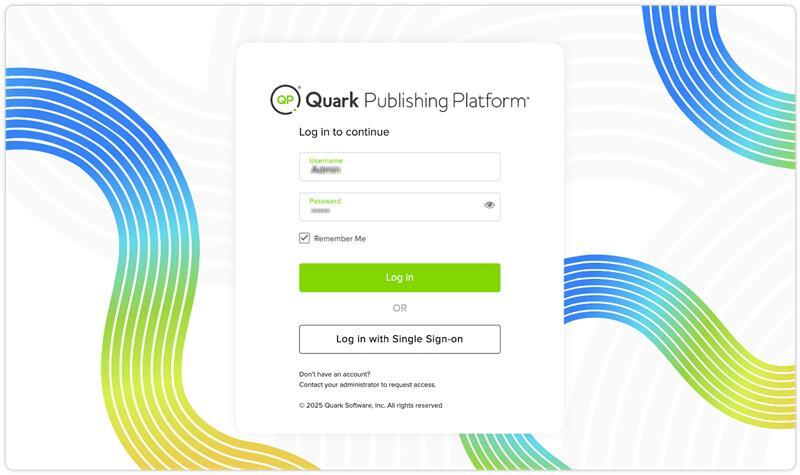
Enter the URL of the server in a browser (for example, https://<SERVER-URL>/auth/login) to open the login page.
-
Enter your username and password then click Login.
-
Click the checkbox Remember Me to allow QPP to automatically log you in the next time you visit the server URL.
-
Top Navigation Bar
Once you're logged in to QPP, you'll see various navigation bar tabs, time zone, and quick action icons.

Which of the navigation bar tabs and quick action icons you see and access depends on the license you have, which are as follows:
Navigation Bar Tabs
|
Tab |
Accessible To (License) |
Description |
|
Displays a customized home screen with assets and other key sections based on the license you have. |
|
|
Displays a list of content models and key assets for quick access to authoring tasks. |
|
|
Displays a list of advanced search options. |
|
|
Displays all the assets that have been assigned to you for review or the assets that you have created. |
|
|
Displays the file manager of the platform repository, from where you can see and browse through all the files and folders you have access to. |
|
|
Previously, we had Analytics tab, that has now been restructured and divided into two distinct tabs: Content Strategy and Content Operations. These two tabs display several types of statistics to help you analyze the performance of your content. |
|
|
Displays all the options an administrator user needs to manage users and assets on the platform. |
Time Zone
The Time Zone display on the top bar of our platform — providing you with easy access to your current time zone across all sections. Please note that the Time Zone will only be visible on the top bar when it's enabled in the Preferences settings. This enhancement aims to improve user awareness and facilitate better scheduling and coordination within the platform.
The time zone is presented in AM/PM format and is determined by the user's local system settings. If a time zone is set on the web browser, it will take precedence over the local system's setting.
Quick Action Icons
|
Quick Action |
Icon |
Accessible To (License) |
Description |
|
Search |
|
|
Allows you to do a quick search for an asset by name or attribute. |
|
|
|
Allows you to upload a file or folder to the platform repository from your local file system. |
|
|
|
|
Displays any background tasks, (such as a search query being exported or an asset being published) that are currently running on the platform. |
|
|
|
|
Allows you to toggle between online and offline editing to make changes to a document on the server or locally. |
|
|
Docurated Plugin |
|
|
Allows you to access the Docurated* portal in a new browser tab. |
|
Profile Menu |
Your profile avatar |
|
Displays the options to sign out from the platform and to see information about the platform. |


Verify Product Version
As a logged-in user, you can also view the version of QPP that you're using through the Profile menu card.
To view the version:
-
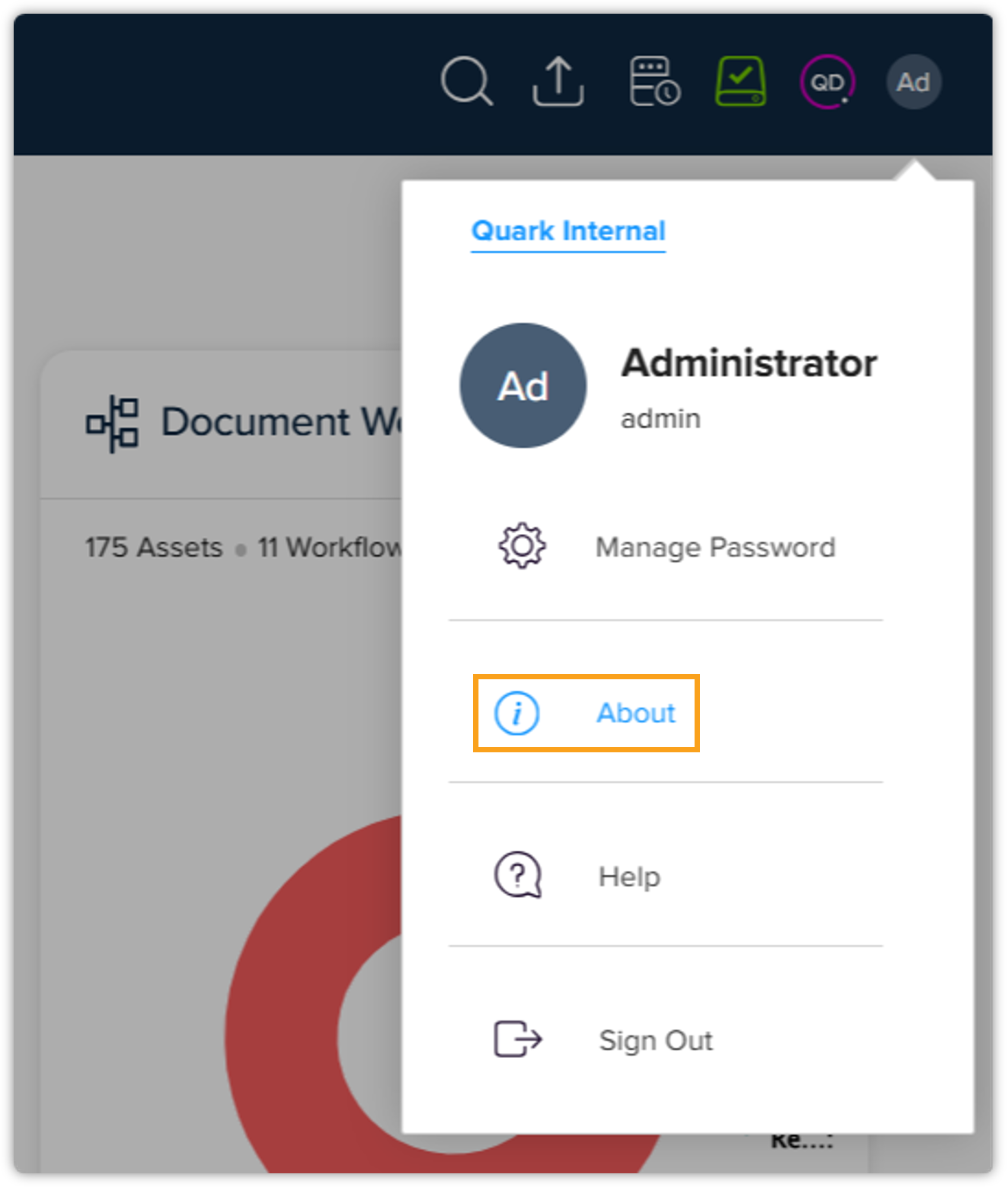
Click the profile picture/user avatar at the upper right corner of your screen.
-
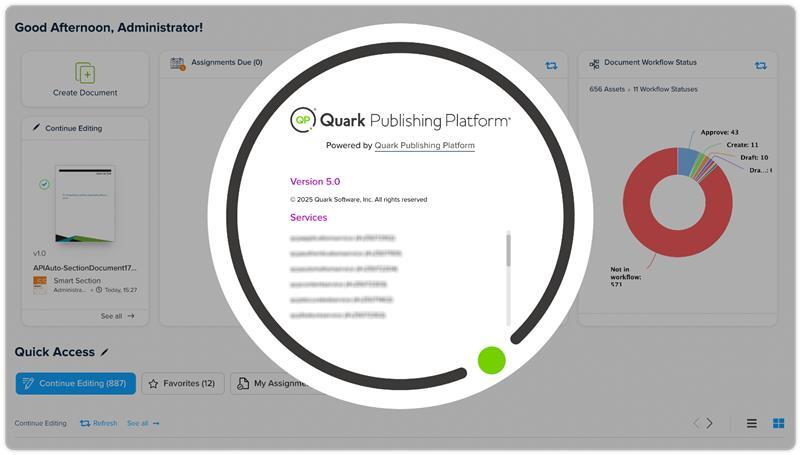
Click About to see the version details.